

$1.49
$0.89
40% Off
OneYou Icon Pack
PashaPuma Design





About the App
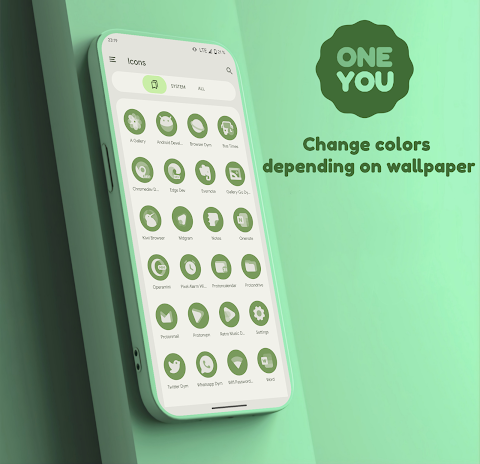
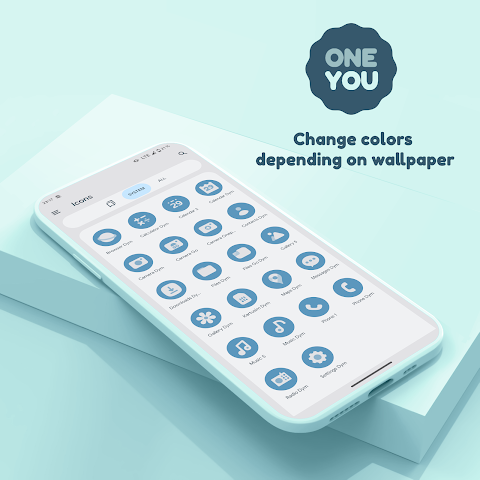
OneYou Icon Pack is a dynamic icon pack designed for Android devices running version 12 and higher. Inspired by Samsung One UI 8, this app lets you customize your home screen with beautiful icons that adapt to your wallpaper and accent system colors. These icons also change between light mode and dark mode, giving your device a fresh look at all times.
With OneYou Icon Pack, you can enjoy adaptive icons that adjust their appearance based on your settings. It also features MaterialYou Widgets, styled to fit perfectly within the One UI design. You can easily access these widgets by long-pressing your home screen and selecting “Widgets.” You will find the OneYou option in the list, just like accessing regular device widgets.
To change the colors of the icons, start by updating your wallpaper or accent color in your system settings. After you make these changes, you will need to reapply the icon pack. If you want to switch to light or dark mode, simply adjust your device theme. You will again need to reapply the icon pack for the colors to update, unless you are using launchers that automatically change colors, such as Hyperion beta launcher, Niagara Launcher, AIO Launcher, Nova Launcher beta, or Smart Launcher beta.
For Samsung users, it’s important to activate Monet on your device. To do this, go into your system settings, then Wallpaper and Styles. Set your wallpaper and also select a system color palette. After that, go to your launcher settings to choose a Monet supported icon pack. If you are using the stock One UI launcher on a Samsung device, apply the icons through the Theme Park using the same steps.
If you wish to use the search widgets, make sure you have the Google application and Google Lens installed. For Pixel users wanting to change icons, if you do not have root access, you will need to set icons on the home screen using the Shortcut Maker application. If you do have root access, you can customize icons in both the desktop and app drawer using the Pixel Launcher Mods app.
If something doesn’t work as expected, there’s a technical support group available on Telegram where you can ask for help. You can find the link to this support within the app itself.
For the best experience with OneYou Icon Pack, consider using launchers that support automatic color changes. These include the Hyperion beta launcher, Niagara Launcher, AIO Launcher, Nova Launcher beta, and Smart Launcher beta. Other options like Action Launcher, Ruthless Launcher, and Lawnchair also work well but may not have automatic color features.
Customizing your device with OneYou Icon Pack allows for a unique and engaging experience. With simple adjustments in system settings, you can have a home screen that reflects your style and personality, all while benefiting from a clean and modern design. Enjoy the freedom to change colors, use widgets, and personalize your home screen to fit your needs.
With OneYou Icon Pack, you can enjoy adaptive icons that adjust their appearance based on your settings. It also features MaterialYou Widgets, styled to fit perfectly within the One UI design. You can easily access these widgets by long-pressing your home screen and selecting “Widgets.” You will find the OneYou option in the list, just like accessing regular device widgets.
To change the colors of the icons, start by updating your wallpaper or accent color in your system settings. After you make these changes, you will need to reapply the icon pack. If you want to switch to light or dark mode, simply adjust your device theme. You will again need to reapply the icon pack for the colors to update, unless you are using launchers that automatically change colors, such as Hyperion beta launcher, Niagara Launcher, AIO Launcher, Nova Launcher beta, or Smart Launcher beta.
For Samsung users, it’s important to activate Monet on your device. To do this, go into your system settings, then Wallpaper and Styles. Set your wallpaper and also select a system color palette. After that, go to your launcher settings to choose a Monet supported icon pack. If you are using the stock One UI launcher on a Samsung device, apply the icons through the Theme Park using the same steps.
If you wish to use the search widgets, make sure you have the Google application and Google Lens installed. For Pixel users wanting to change icons, if you do not have root access, you will need to set icons on the home screen using the Shortcut Maker application. If you do have root access, you can customize icons in both the desktop and app drawer using the Pixel Launcher Mods app.
If something doesn’t work as expected, there’s a technical support group available on Telegram where you can ask for help. You can find the link to this support within the app itself.
For the best experience with OneYou Icon Pack, consider using launchers that support automatic color changes. These include the Hyperion beta launcher, Niagara Launcher, AIO Launcher, Nova Launcher beta, and Smart Launcher beta. Other options like Action Launcher, Ruthless Launcher, and Lawnchair also work well but may not have automatic color features.
Customizing your device with OneYou Icon Pack allows for a unique and engaging experience. With simple adjustments in system settings, you can have a home screen that reflects your style and personality, all while benefiting from a clean and modern design. Enjoy the freedom to change colors, use widgets, and personalize your home screen to fit your needs.

Compact Watch Face
amoledwatchfaces™
$1.49
$0.45
Digital RetroFlip Watch face
GoWer watch faces
$1.49
$0.49
EXD130: Galaxy Time
Executive Design Watch Face
$2.49
$1.49