

$0.99
FREE
100% Off
Marigold – Lines Icon Pack
Panoto Gomo



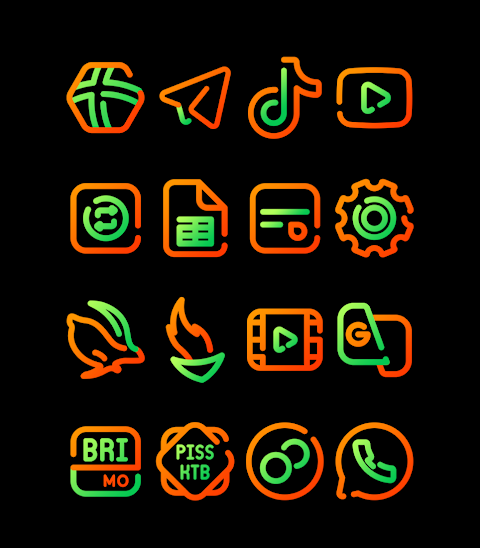


About the App
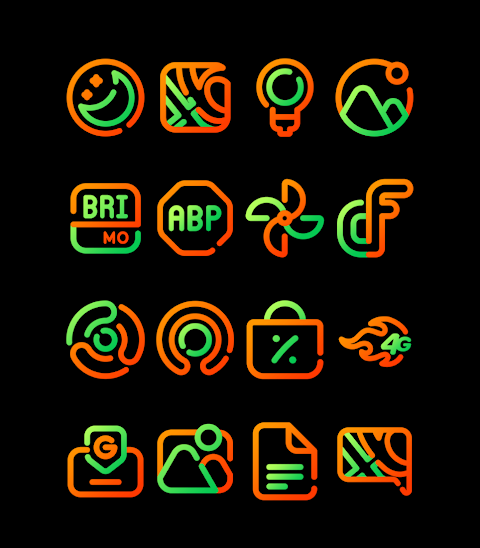
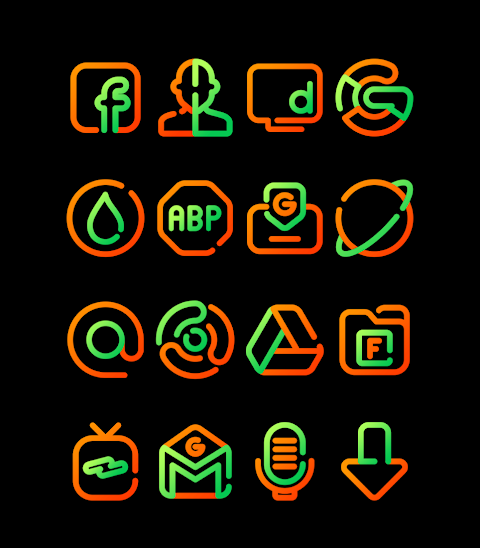
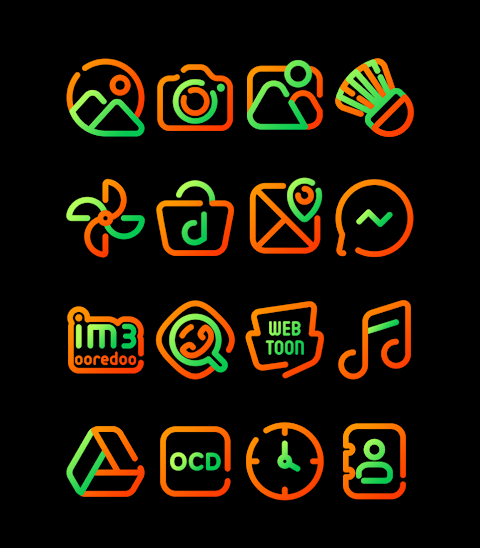
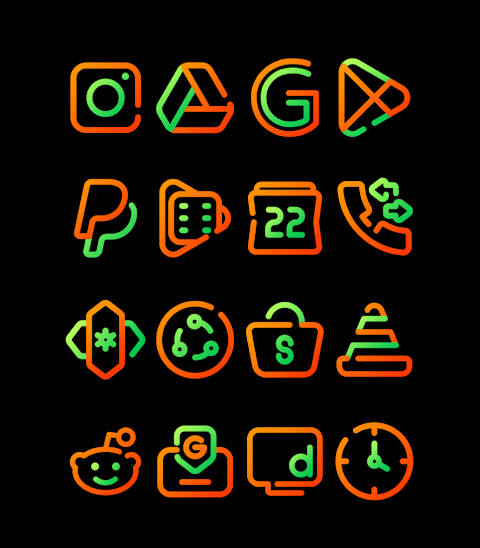
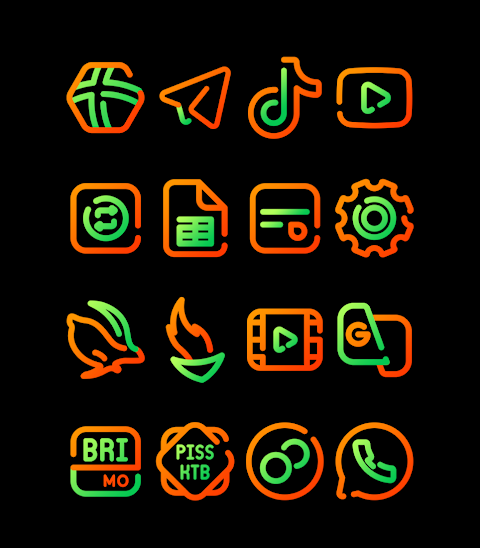
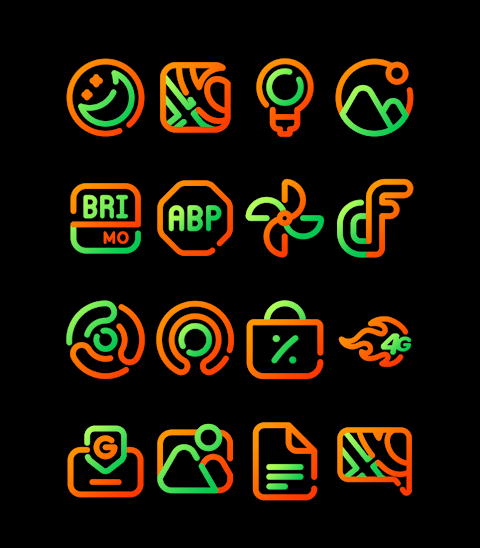
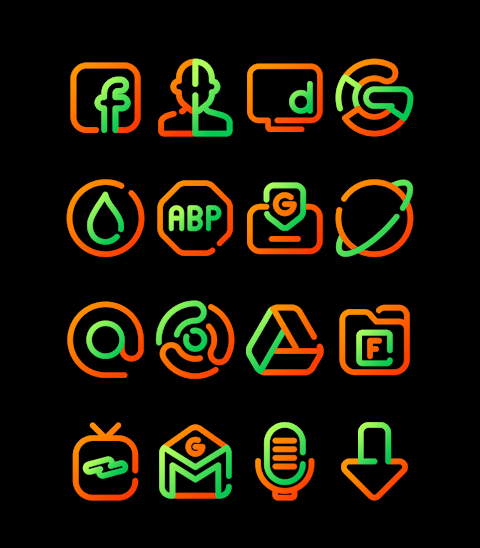
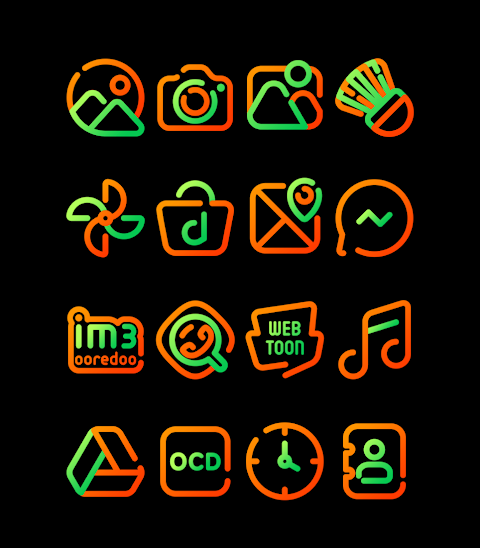
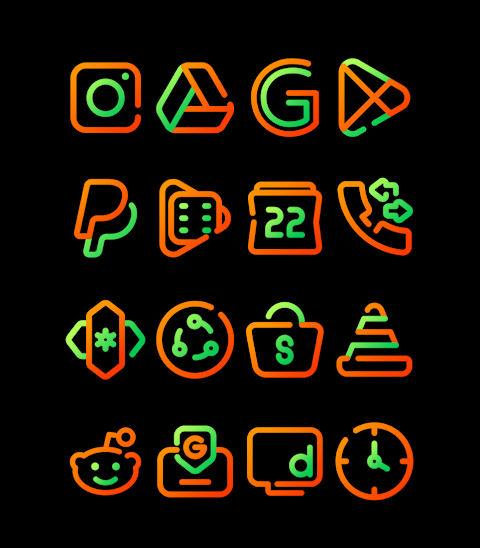
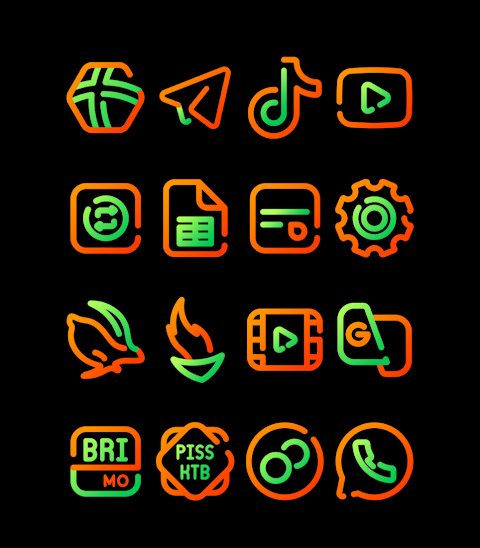
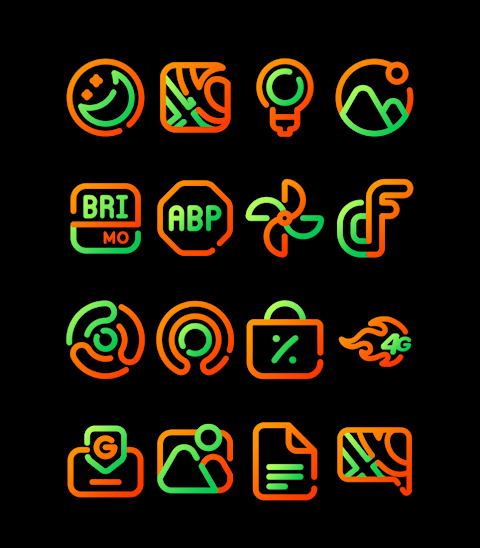
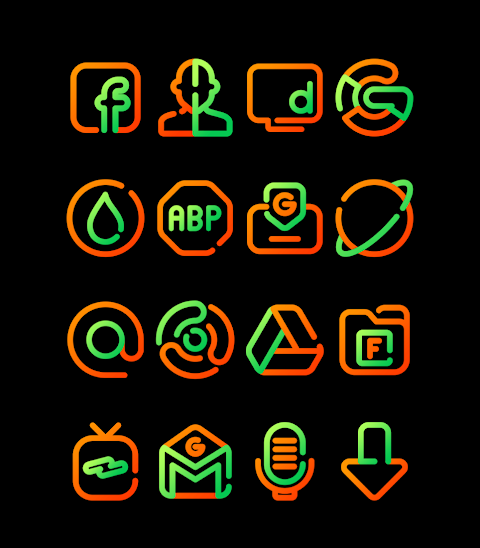
Marigold is a stylish icon pack featuring beautiful Orange and Green colors in a line icon design. With over 3000 icons and counting, Marigold offers a great way to personalize your device. It also includes wallpapers that match the icons, along with an icon request feature, allowing you to ask for new icons if you need them.
The icons in Marigold have an HD icon resolution of 256x256 pixels, ensuring they look sharp and appealing on your screen. This pack is perfect for anyone who wants to enhance their home screen styling and enjoy unique icon styles.
Applying the Marigold icon pack is easy, especially if you use popular launchers. The app supports many well-known launchers, including Nova Launcher, Evie Launcher, Apex Launcher, ADW Launcher, ABC Launcher, Next Launcher, Holo Launcher, Lucid Launcher, M Launcher, Action Launcher, and Sony Xperia Home Launcher, among others. To apply the icon pack, simply follow these steps:
1. Open the Marigold app.
2. Find and navigate to the "Apply Icon Pack" screen.
3. You’ll see a list of supported launchers. Select your installed launcher, like Nova Launcher, to start applying the icons.
4. The app will automatically apply the icons from Marigold to your chosen launcher.
If your launcher doesn’t show up when applying from the app, you can try applying the icons directly through the launcher itself.
For those using Sony Xperia Home Launcher, you can still apply the Marigold icon pack, but it requires a few extra steps. Here’s how:
1. Long press on your main screen.
2. Open the settings menu.
3. Scroll down to find the appearance icon setting.
4. Choose the Marigold icon pack from the list.
5. That’s it! Your Sony Xperia device is now using the Marigold icon pack.
Keep in mind that this icon pack only supports Sony Xperia Home Launcher version 10.0.A.0.8 or higher.
Marigold also includes features to help you stay updated with design information. You can find more on platforms like Google+, Instagram, and Twitter, offering insights into new designs and updates.
With Marigold, you get to enjoy a wide range of icons and the flexibility to customize your device, making it a great choice for anyone looking to enhance their mobile experience.
The icons in Marigold have an HD icon resolution of 256x256 pixels, ensuring they look sharp and appealing on your screen. This pack is perfect for anyone who wants to enhance their home screen styling and enjoy unique icon styles.
Applying the Marigold icon pack is easy, especially if you use popular launchers. The app supports many well-known launchers, including Nova Launcher, Evie Launcher, Apex Launcher, ADW Launcher, ABC Launcher, Next Launcher, Holo Launcher, Lucid Launcher, M Launcher, Action Launcher, and Sony Xperia Home Launcher, among others. To apply the icon pack, simply follow these steps:
1. Open the Marigold app.
2. Find and navigate to the "Apply Icon Pack" screen.
3. You’ll see a list of supported launchers. Select your installed launcher, like Nova Launcher, to start applying the icons.
4. The app will automatically apply the icons from Marigold to your chosen launcher.
If your launcher doesn’t show up when applying from the app, you can try applying the icons directly through the launcher itself.
For those using Sony Xperia Home Launcher, you can still apply the Marigold icon pack, but it requires a few extra steps. Here’s how:
1. Long press on your main screen.
2. Open the settings menu.
3. Scroll down to find the appearance icon setting.
4. Choose the Marigold icon pack from the list.
5. That’s it! Your Sony Xperia device is now using the Marigold icon pack.
Keep in mind that this icon pack only supports Sony Xperia Home Launcher version 10.0.A.0.8 or higher.
Marigold also includes features to help you stay updated with design information. You can find more on platforms like Google+, Instagram, and Twitter, offering insights into new designs and updates.
With Marigold, you get to enjoy a wide range of icons and the flexibility to customize your device, making it a great choice for anyone looking to enhance their mobile experience.

Hybrid TAG Carrera Watch face
Magnum Watch Faces
$1.49
$0.45
Roui – Icon Pack
Olivera Onias Design
$1.49
$0.30

Minka Dark – Icon Pack
GomoTheGom
$1.49
FREE