
$2.39
$1.20
50% Off
Floral Spring 1
ChronoHarvest

About the App
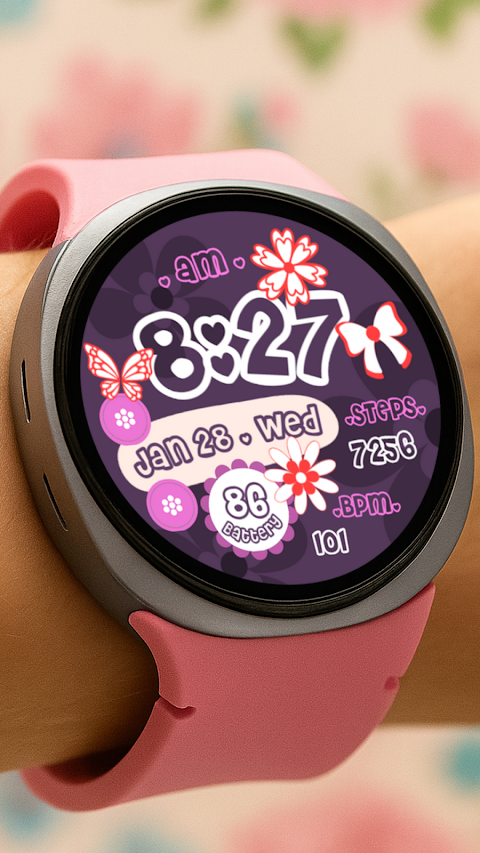
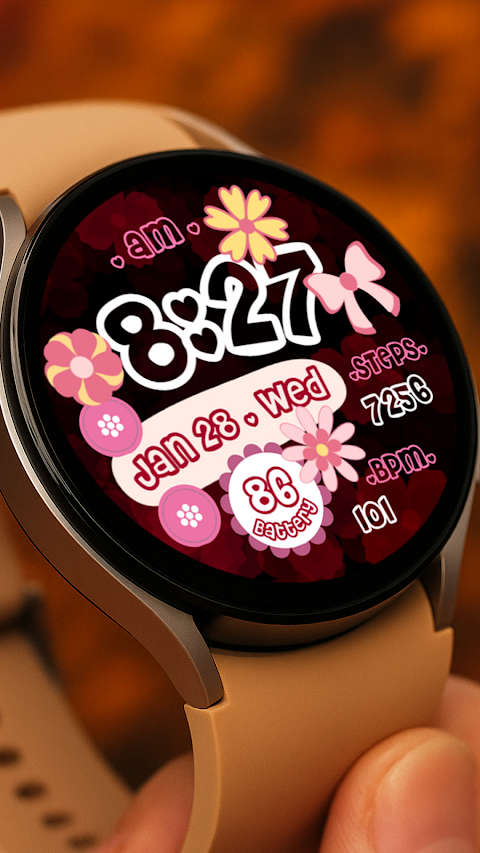
Floral Spring 1 is a beautifully designed watch face that works well with all Wear OS devices, including the Samsung Galaxy Watch. It provides a range of features to help you keep track of time and monitor your health, all while looking stylish.
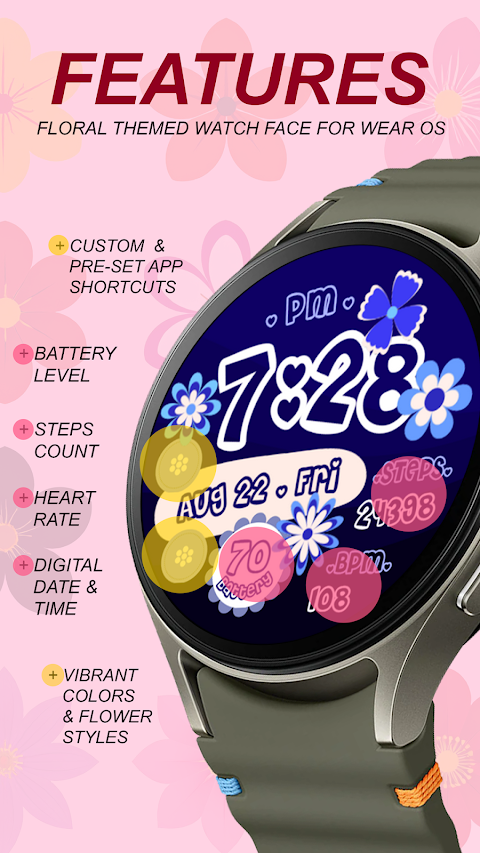
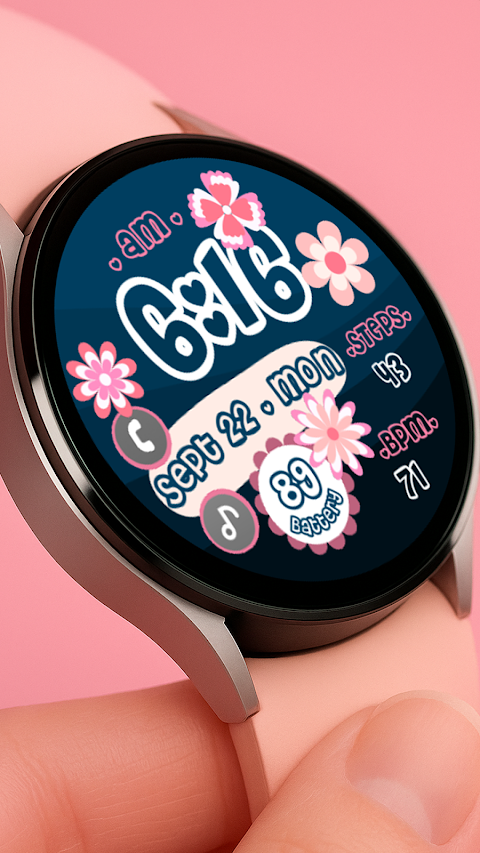
The watch face displays a Digital Clock that you can set to a 12 or 24-hour format. Alongside the time, it shows important information like the date, your Steps Tracking, a Heart Rate monitor, and a Battery indicator, making it a practical choice for everyday use.
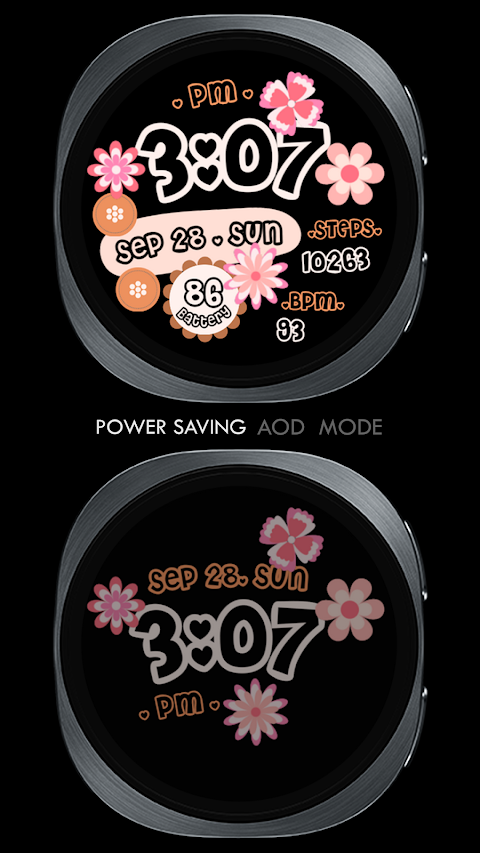
One standout feature of Floral Spring 1 is the Always-On Display. This means you can glance at your watch to see the time and other stats without needing to activate it first. You can also customize the watch face with Custom App Shortcuts, letting you access your favorite apps quickly. There are also Pre-set App Shortcuts available for even faster access.
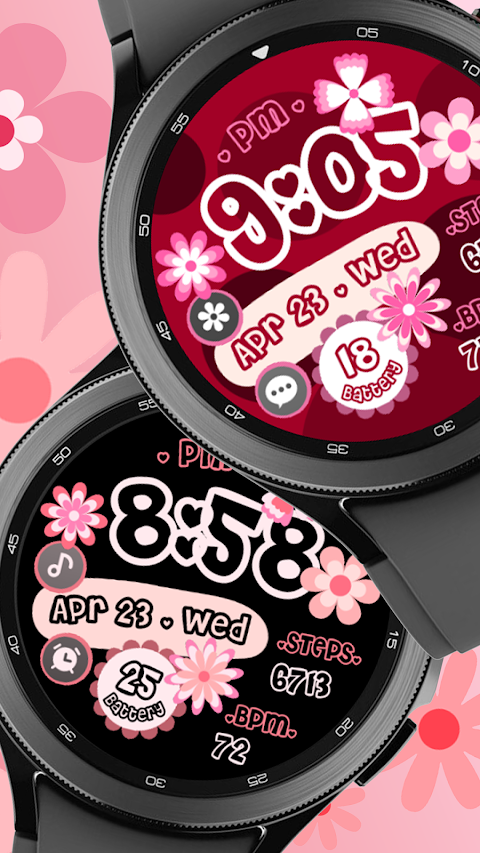
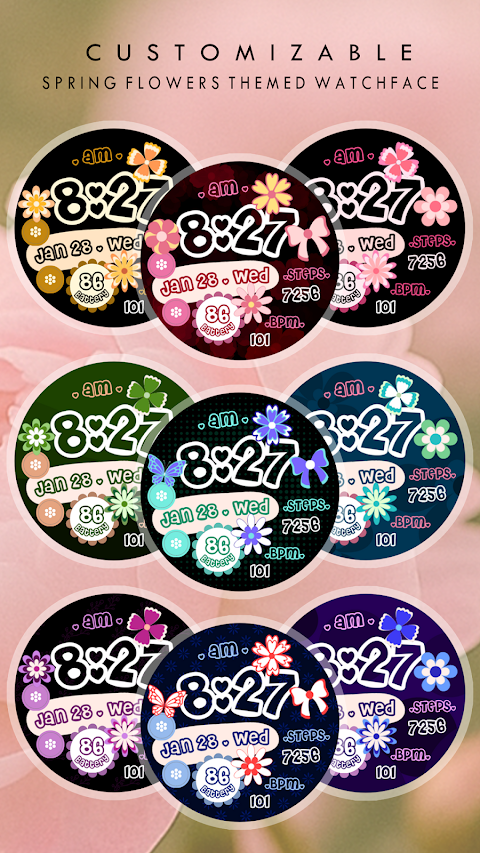
Floral Spring 1 supports a variety of Flower Styles and comes with an adjustable color palette, allowing you to personalize the look to suit your taste. However, please note that some features might not work on all watches, especially if they do not meet API Level 34 or are not running Wear OS 4 or later versions.
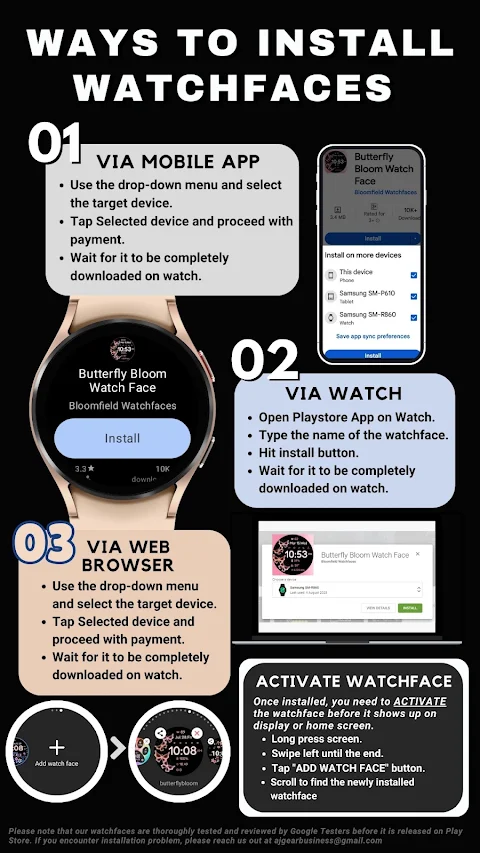
For installation, you'll follow a simple process. The watch face will automatically install on your Wear OS watch. Make sure your watch is synced to your phone using the same email address. This ensures a seamless installation process. After you download Floral Spring 1, you may need to wait a few minutes for the watch face to transfer. You will receive a notification on your watch once the transfer is successful. If you don’t see this notification, you can search for "Seasons | Floral Spring" in the Playstore on your watch.
After installing, make sure to set it up correctly. Watch faces do not automatically display after installation. To add it, return to your home display. Simply tap and hold the display, swipe until you find the option to add a new watch face, and then scroll or rotate the Bezel to find Floral Spring 1.
Remember to enable all permission settings on your device. You can do this by going to settings, selecting applications, and then adjusting permissions as needed.
It’s also important to note the refund policy. Refunds for Floral Spring 1 are permitted only within 24 hours of purchase.
If you have any questions or need support, feel free to reach out via email at ajgearbusiness@gmail.com. Additionally, you can watch a helpful YouTube installation tutorial to guide you through the setup process.
With Floral Spring 1, you'll enjoy a beautifully functional watch face that fits your style and helps you stay organized.
The watch face displays a Digital Clock that you can set to a 12 or 24-hour format. Alongside the time, it shows important information like the date, your Steps Tracking, a Heart Rate monitor, and a Battery indicator, making it a practical choice for everyday use.
One standout feature of Floral Spring 1 is the Always-On Display. This means you can glance at your watch to see the time and other stats without needing to activate it first. You can also customize the watch face with Custom App Shortcuts, letting you access your favorite apps quickly. There are also Pre-set App Shortcuts available for even faster access.
Floral Spring 1 supports a variety of Flower Styles and comes with an adjustable color palette, allowing you to personalize the look to suit your taste. However, please note that some features might not work on all watches, especially if they do not meet API Level 34 or are not running Wear OS 4 or later versions.
For installation, you'll follow a simple process. The watch face will automatically install on your Wear OS watch. Make sure your watch is synced to your phone using the same email address. This ensures a seamless installation process. After you download Floral Spring 1, you may need to wait a few minutes for the watch face to transfer. You will receive a notification on your watch once the transfer is successful. If you don’t see this notification, you can search for "Seasons | Floral Spring" in the Playstore on your watch.
After installing, make sure to set it up correctly. Watch faces do not automatically display after installation. To add it, return to your home display. Simply tap and hold the display, swipe until you find the option to add a new watch face, and then scroll or rotate the Bezel to find Floral Spring 1.
Remember to enable all permission settings on your device. You can do this by going to settings, selecting applications, and then adjusting permissions as needed.
It’s also important to note the refund policy. Refunds for Floral Spring 1 are permitted only within 24 hours of purchase.
If you have any questions or need support, feel free to reach out via email at ajgearbusiness@gmail.com. Additionally, you can watch a helpful YouTube installation tutorial to guide you through the setup process.
With Floral Spring 1, you'll enjoy a beautifully functional watch face that fits your style and helps you stay organized.
ZKin Watch Colored Arc Circle
ZKin
$2.99
$0.99
Information Block ZKin Watch
ZKin
$2.99
$0.99
Pulse Watch Face
amoledwatchfaces™
$1.49
FREE