
$2.99
$1.99
33% Off
PixiVisor
Alexander Zolotov

About the App
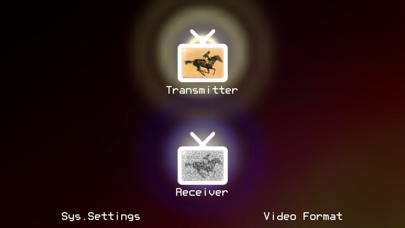
PixiVisor is a unique tool designed for exploring the way video can be transmitted over audio. It has two main parts: the Transmitter and the Receiver, which work together to convert video signals into sound, and vice versa.
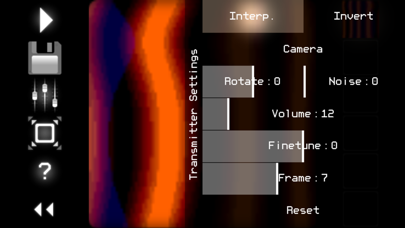
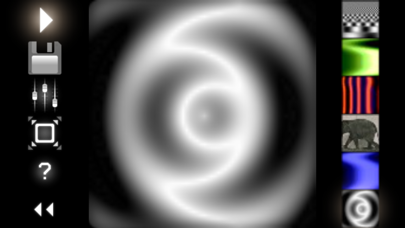
The Transmitter takes low-resolution video, which can come from a camera stream, a static image, or even a GIF animation. It converts this video into sound in real time, pixel by pixel, using a technique called progressive scan transmission. This means you can send any image or animation to other devices through sound.
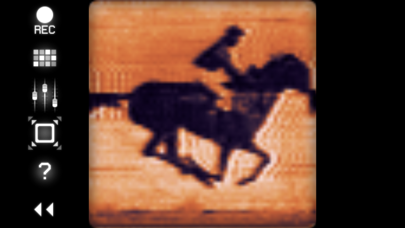
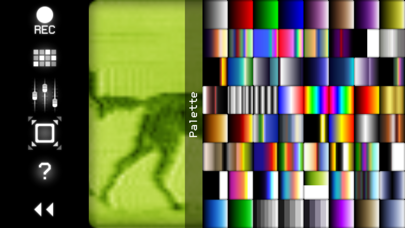
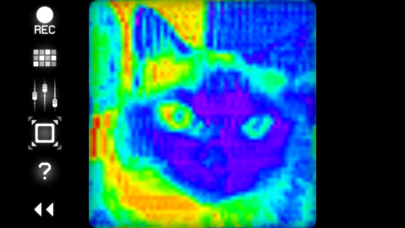
On the other hand, the Receiver does the opposite. It picks up the sound from a microphone or a Line-in input and converts it back into video. You can customize the color palette settings for this video and even record it as an animated GIF file.
There are many interesting ways to use PixiVisor. One popular application is for wireless Lo-Fi video transmission over audio. You can also transmit video signals through an audio cable, allowing for video signal modification using mixers or audio FX processors. This can be especially useful for VJing performances, where real-time mixing of visuals is essential.
Additionally, PixiVisor is great for sound visualization techniques. It allows users to search for hidden messages in ambient noise, such as EVP (Electronic Voice Phenomenon) or ITC (Instrumental Transcommunication). You can also save any sound directly to an animated GIF, making it versatile for creative projects.
Using PixiVisor is straightforward, thanks to its simple control keys. The SPACE bar lets you play or stop the transmitter. You can select different slots using the number keys 1 through 6. The F key lets you hide or show the control panel for easier navigating.
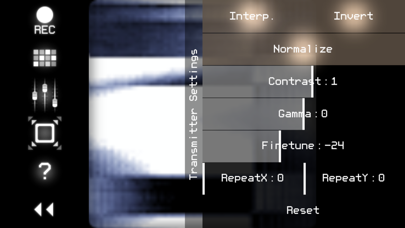
In the Receiver, you can use the brackets to cycle through previous or next color palettes. There are keys available to invert the signals and normalize them. You can also adjust contrast and gamma levels, helping you fine-tune the video output. For image movement controls, you can use the arrow keys to shift the video as needed.
Whether you're experimenting with video transmission through sound or exploring creative audio and visual projects, PixiVisor offers a wide range of possibilities. You can also try out test broadcasts and watch videos to learn more about how to use this innovative tool.
If you’re interested in pushing the boundaries of what audio and video can do together, PixiVisor is the perfect tool for you. It opens up new avenues for creativity with its ability to integrate different audio sources and processing techniques, exploring uncharted territories in media synthesis.
The Transmitter takes low-resolution video, which can come from a camera stream, a static image, or even a GIF animation. It converts this video into sound in real time, pixel by pixel, using a technique called progressive scan transmission. This means you can send any image or animation to other devices through sound.
On the other hand, the Receiver does the opposite. It picks up the sound from a microphone or a Line-in input and converts it back into video. You can customize the color palette settings for this video and even record it as an animated GIF file.
There are many interesting ways to use PixiVisor. One popular application is for wireless Lo-Fi video transmission over audio. You can also transmit video signals through an audio cable, allowing for video signal modification using mixers or audio FX processors. This can be especially useful for VJing performances, where real-time mixing of visuals is essential.
Additionally, PixiVisor is great for sound visualization techniques. It allows users to search for hidden messages in ambient noise, such as EVP (Electronic Voice Phenomenon) or ITC (Instrumental Transcommunication). You can also save any sound directly to an animated GIF, making it versatile for creative projects.
Using PixiVisor is straightforward, thanks to its simple control keys. The SPACE bar lets you play or stop the transmitter. You can select different slots using the number keys 1 through 6. The F key lets you hide or show the control panel for easier navigating.
In the Receiver, you can use the brackets to cycle through previous or next color palettes. There are keys available to invert the signals and normalize them. You can also adjust contrast and gamma levels, helping you fine-tune the video output. For image movement controls, you can use the arrow keys to shift the video as needed.
Whether you're experimenting with video transmission through sound or exploring creative audio and visual projects, PixiVisor offers a wide range of possibilities. You can also try out test broadcasts and watch videos to learn more about how to use this innovative tool.
If you’re interested in pushing the boundaries of what audio and video can do together, PixiVisor is the perfect tool for you. It opens up new avenues for creativity with its ability to integrate different audio sources and processing techniques, exploring uncharted territories in media synthesis.
HopWatch for Reddit
UgglyNoodle
$0.99
FREE

Aether Creature Cards
TEAL EYE
$17.99
$8.99

Roulette Analysis
MaciGame
$20.99