
$0.99
$0.50
49% Off
Flora Digital
ChronoHarvest

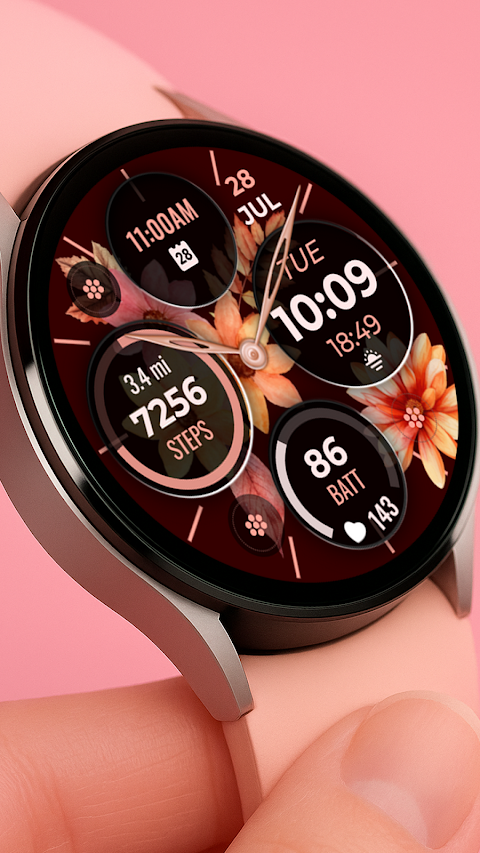
About the App
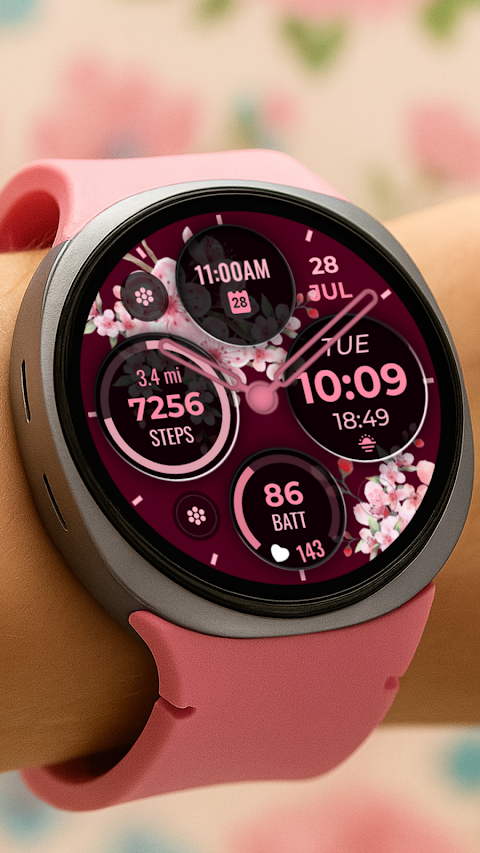
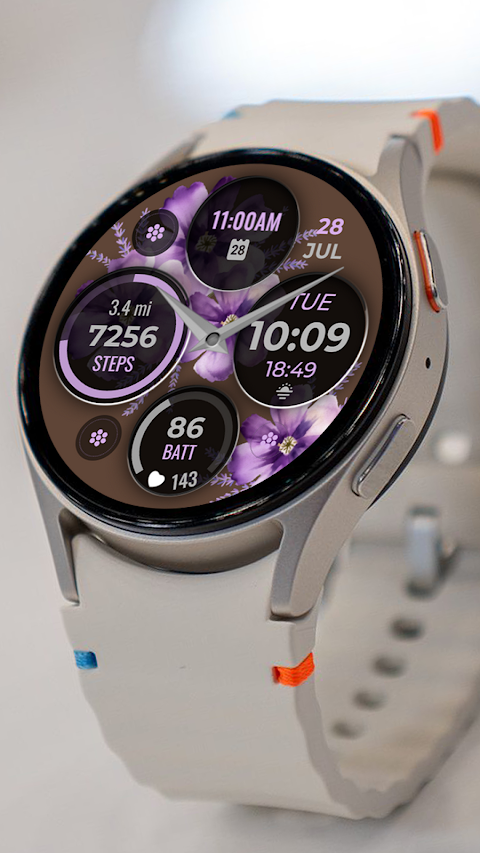
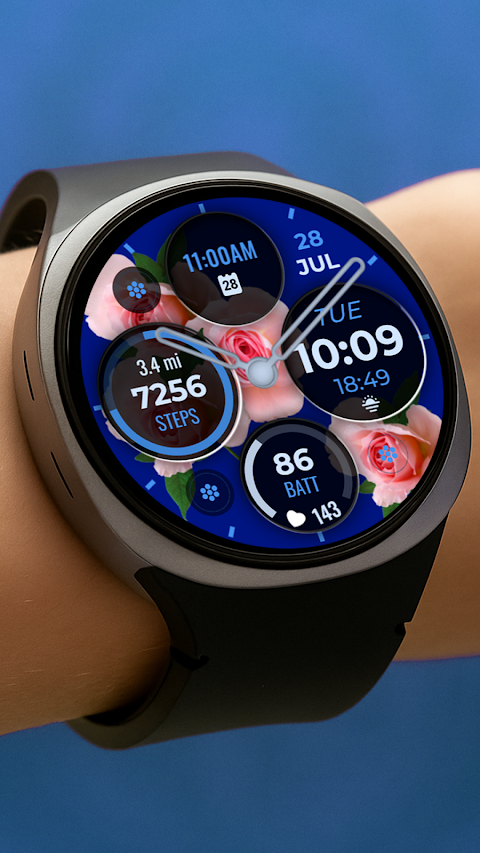
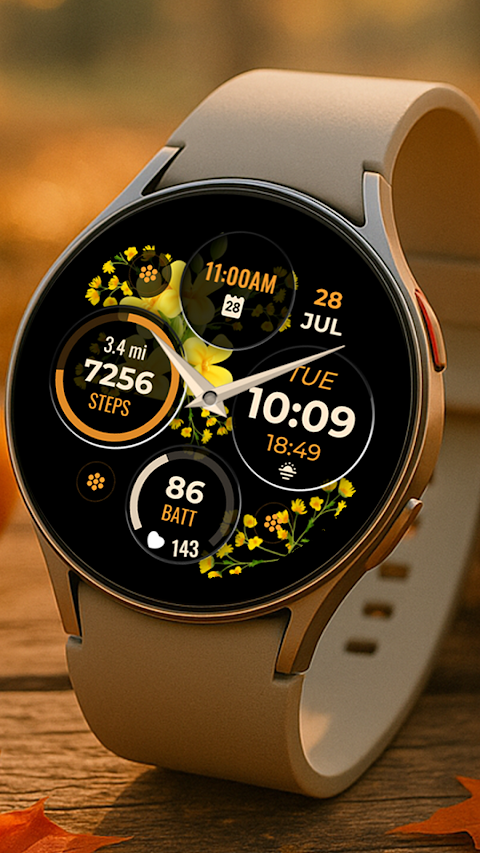
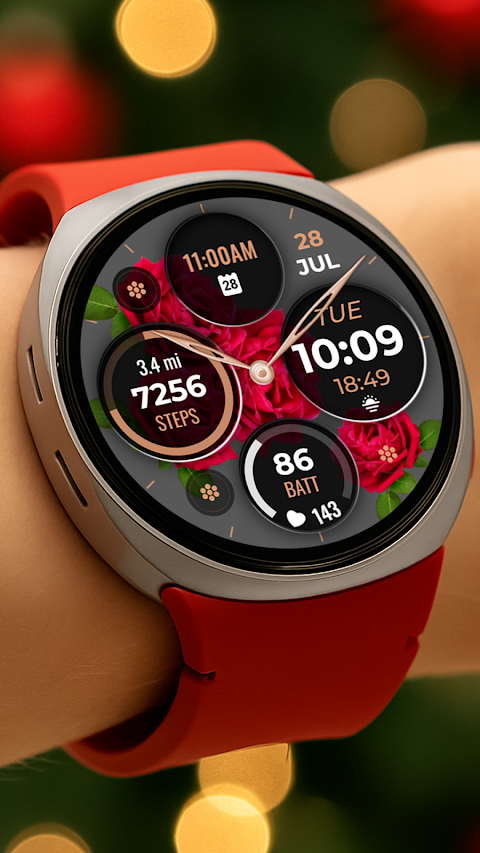
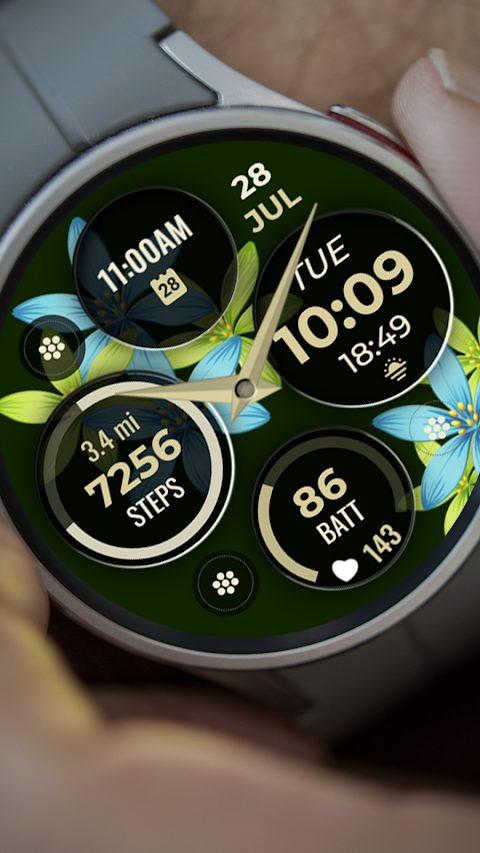
Flora Digital is a beautifully designed watch face specifically created for Wear OS devices, including Galaxy Watch Users. If you enjoy floral themes, this watch face features a stunning Floral Themed Clock that can brighten up your daily routine.
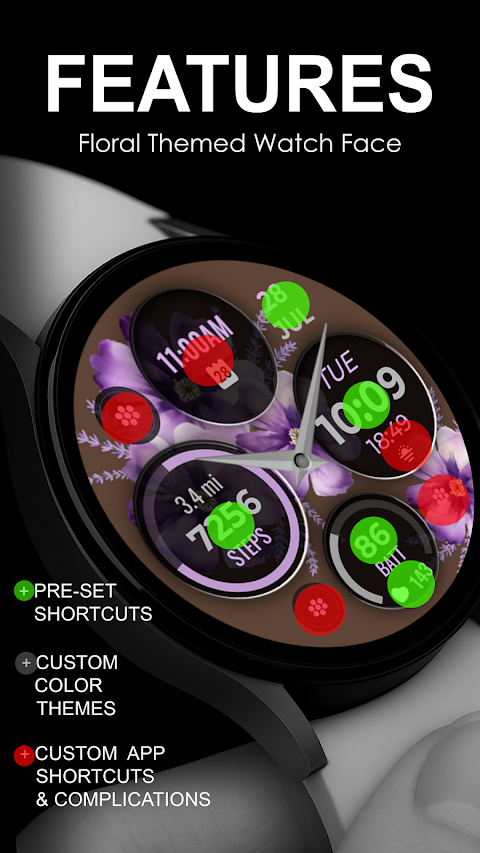
For a more personalized experience, Flora Digital offers several useful features. You will find a Pre-Set App Shortcut for alarms, calendars, heart rate tracking, and steps. You can also make use of three Custom App Shortcuts, allowing you to quickly access your favorite apps. Additionally, there are options for Custom Complications, enabling you to choose what information you want displayed on your watch face. For example, you can opt for a weather data display, sunset/sunrise info, or a next appointment reminder. If you're interested in tracking how far you've walked, Flora Digital also includes a distance walked tracking feature.
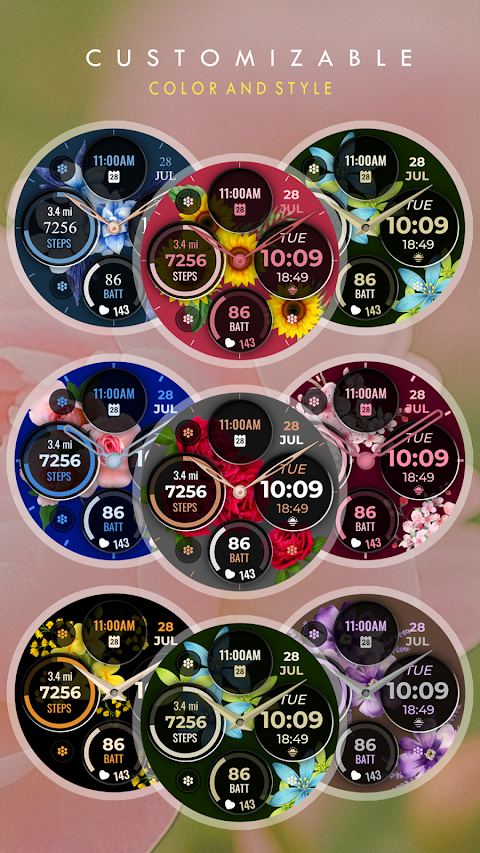
To make your watch face truly yours, Flora Digital supports Custom Themes. You can change the look and feel to match your style. This watch face is compatible with all Wear OS devices that have API Level 34 or later, ensuring that you'll enjoy seamless performance with Wear OS 4 support.
When you install Flora Digital, the process is straightforward. The watch face will automatically install on your Wear OS watch as long as it is synced to your phone. Make sure you are using the same email address for a seamless installation process. After downloading, you'll need to wait a few minutes for the watch face to be transferred. You will receive a notification for transfer success once this is complete.
If you do not see a notification, you can manually check by going to the Play Store on your watch. Just type "Flora Digital" in the search box to confirm the installation. Don’t forget that after the installation, the watch face won’t automatically change. You’ll need to go back to your home display, tap and hold the screen, swipe until you see the option to add a watch face, and then rotate the bezel or scroll to find Flora Digital.
It’s important to manage permissions, so remember to allow or enable all necessary permissions from the settings menu on your device. Lastly, please note that the refund policy is only valid within 24 hours of purchase.
If you have any questions or need assistance, feel free to contact us at ajgearbusiness@gmail.com. For more detailed instructions, make sure to check out our installation tutorial available on YouTube. Enjoy customizing your wear experience with Flora Digital!
For a more personalized experience, Flora Digital offers several useful features. You will find a Pre-Set App Shortcut for alarms, calendars, heart rate tracking, and steps. You can also make use of three Custom App Shortcuts, allowing you to quickly access your favorite apps. Additionally, there are options for Custom Complications, enabling you to choose what information you want displayed on your watch face. For example, you can opt for a weather data display, sunset/sunrise info, or a next appointment reminder. If you're interested in tracking how far you've walked, Flora Digital also includes a distance walked tracking feature.
To make your watch face truly yours, Flora Digital supports Custom Themes. You can change the look and feel to match your style. This watch face is compatible with all Wear OS devices that have API Level 34 or later, ensuring that you'll enjoy seamless performance with Wear OS 4 support.
When you install Flora Digital, the process is straightforward. The watch face will automatically install on your Wear OS watch as long as it is synced to your phone. Make sure you are using the same email address for a seamless installation process. After downloading, you'll need to wait a few minutes for the watch face to be transferred. You will receive a notification for transfer success once this is complete.
If you do not see a notification, you can manually check by going to the Play Store on your watch. Just type "Flora Digital" in the search box to confirm the installation. Don’t forget that after the installation, the watch face won’t automatically change. You’ll need to go back to your home display, tap and hold the screen, swipe until you see the option to add a watch face, and then rotate the bezel or scroll to find Flora Digital.
It’s important to manage permissions, so remember to allow or enable all necessary permissions from the settings menu on your device. Lastly, please note that the refund policy is only valid within 24 hours of purchase.
If you have any questions or need assistance, feel free to contact us at ajgearbusiness@gmail.com. For more detailed instructions, make sure to check out our installation tutorial available on YouTube. Enjoy customizing your wear experience with Flora Digital!
OS Round – Icon Pack
Olivera Onias Design
$1.49
$0.30

BubbleVerse Watch Face GTG4
GoodTimes Initiative
$1.49
$0.75

VFM04 Minimal Digital
VeselkaFace DESIGN
$0.99
$0.30